


TLDR
- Use Search when your browser agent doesn’t yet know where the information lives.
- If you don’t need to click, scroll, or log in, use Fetch.
- Browsers are the API to use when the page requires interaction, data is behind a login or JS, or you need high accuracy over speed.
What Browserbase API should I use?
If you’ve started building agents that interact with the web, you’ve probably hit this question pretty quickly: “Okay … but which Browserbase API do I actually use?”
Search? Fetch? Browser?
They can definitely feel overlapping, but in reality, these are complementary tools.
Short answer: use all of them
Browser agents need to find their way through the web, a place built for humans, to quickly answer questions (ex: "where can I find the best ice cream in San Francisco?") or perform actions (ex: "Book a flight to New York for this week end").
Usually, this means that a browser agent must:
- Find where to go → Search API
- Check what’s there → Fetch API
- Act on it → Browser API
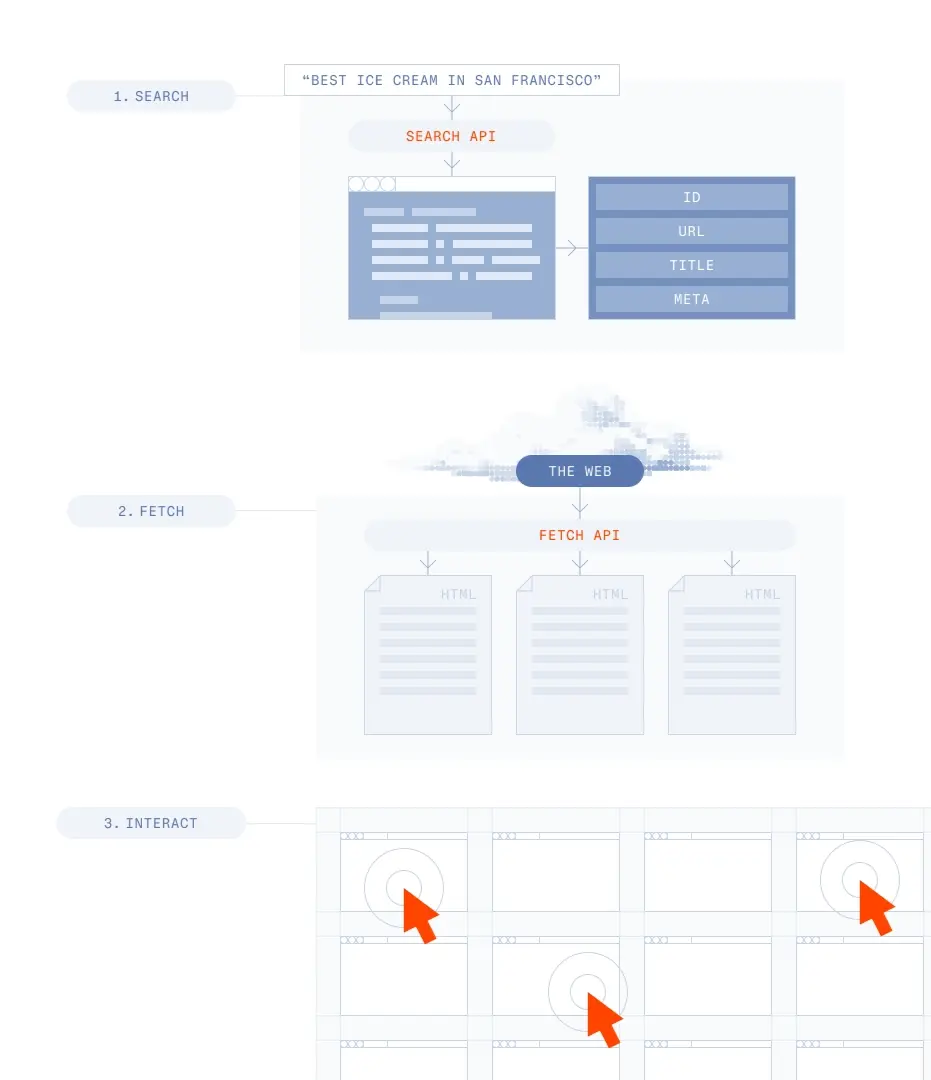
The 3 APIs (and when to use each)
Let’s make this concrete. Imagine you’re building a browser agent to find apartments in San Francisco under $3k and compile details like price, location, and amenities.
1. Search API → Find where to go
Use Search when your browser agent doesn’t yet know where the information lives. In other words, it will give you the best starting points on the web for some task.
Some useful applications:
- “Find all pages about this company’s security practices”
- “Search for competitors’ feature pages”
- “Find sources for this research query”
Under the hood, it returns structured, relevant URLs, so your browser agent can move forward programmatically.
So, task #1 is: “find apartment listings in San Francisco under $3k.”
Example response:
This gives your agent a list of high-quality starting points. It’s not the data itself, just where to go next.
Search is the API to use when you’re doing discovery, gathering sources, or building research/intelligence workflows.
Get started with search here.
2. Fetch API → Quickly read a page
Once you have a URL, the next question is*: “Is this page useful?”*
This is where Fetch comes in. It provides a fast, lightweight representation of a page, without spinning up a full browser, which is ideal for extracting content from simple pages, previewing results before deeper interaction, and handling static or low-complexity sites
Now, task #2 is getting some information from a listing website:
Response:
Fetch gives you the raw page content, but it doesn’t interact with the page or run workflows.
This is the API to use when you just need the content, the page doesn’t require interaction, and when performance and cost matter
If you don’t need to click, scroll, or log in, use Fetch.
Get started with browsers here.
3. Browser API → Interact with the web
When things get real, you need a browser. With the Browser API, you’re enabling: “Do what a human would do on this page.”
These tasks could be clicking buttons, filling forms, navigating multi-step workflows, logging in, handling JavaScript-heavy pages, dealing with captchas or dynamic UI, and a lot more.
Example response:
Unlike Fetch, this data comes from actually interacting with the page by clicking into listings, waiting for content to load, and extracting structured information.
For example, the agent can click into listings on the right panel, wait for details to render, and extract fields like price, beds, and amenities.
Browsers are the API to use when the page requires interaction, data is behind a login or JS, or you need high accuracy over speed.
Get started with browsers here.
Putting it together
In practice, you rarely use just one API. A typical browser agent loop looks like this:
Search → Fetch → Browser
Let’s say your browser agent needs to generate a report on a company.
- Search → Find relevant sources (website, news, docs).
- Fetch → Quickly extract content from most pages, and filter out low-value results.
- Browser (only when needed) → Log in to portals with agent identity, navigate complex pages, and extract the hard-to-reach data.
Use Search as the entry point, then decide between Fetch and Browser based on complexity.
Use a browser when the web demands it
A lot of early browser agent systems skip this distinction and just use a browser for everything. It works, but it doesn’t scale well. It’s slower, more expensive, and harder to debug.
The teams that build reliable browser agents tend to converge on the same pattern: do as much as possible with lightweight primitives, and only use the browser when you actually need full control. The browserbase platform gives you the flexibility to automate the web based on your specific needs.
Get started
When you’re deciding which API to use, think in terms of what your agent is trying to do in that moment. Is it trying to figure out where to go? Is it just trying to read something? Or does it actually need to interact?
Answer that, and the API choice becomes obvious. :)
Talk to an expert on our team about how to build your browser agent.
Start building with Browserbase
Run headless browsers for your agents and automations at scale. Get started free in minutes.